Configuring SSO with Google (SAML)
This is a sample SSO integration. For more information on implementing SSO with Thredd, please see the SSO section of this guide.
If your organisation uses Google, you can configure Google as an IdP provider to provide SSO access to various Thredd services. For example, you can use SSO to access Thredd Services, such as Thredd Portal. This guidance describes the steps for using the 2.0 version of Security Assertion Markup Language (SAML) protocol for setting up SSO. As a client, you would already have an account on the Google Admin Console.
Setting up SSO is not mandatory, but Thredd recommends it.
Summary of steps
The steps involve:
- Creating a SAML app for your SSO connection to Thredd services.
- Choosing either to download IdP metadata or to add configurations from Thredd. If you add configurations from Thredd, you include the SSO URL and the Entity ID.
- Mapping fields associated with the users defined by Google to those used by your app.
- Assigning access permission on your app.
Configuring SSO
- Log in to the Google Admin console.
- Select Apps > Web and mobile apps.
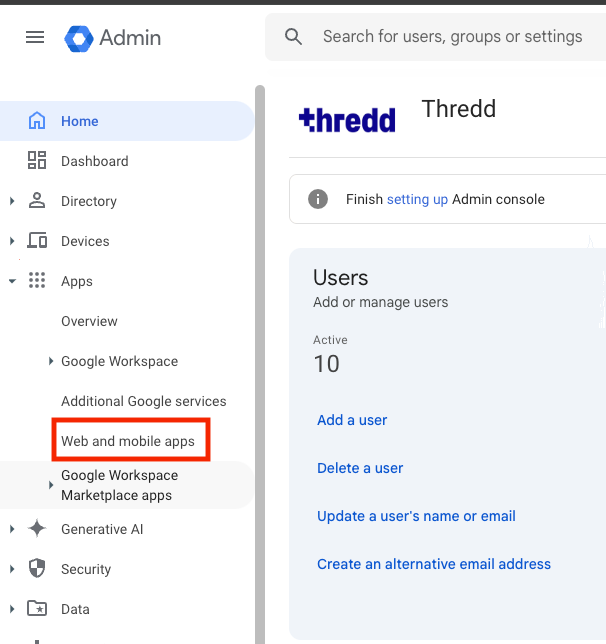
- Select Add app and select Add custom SAML app.
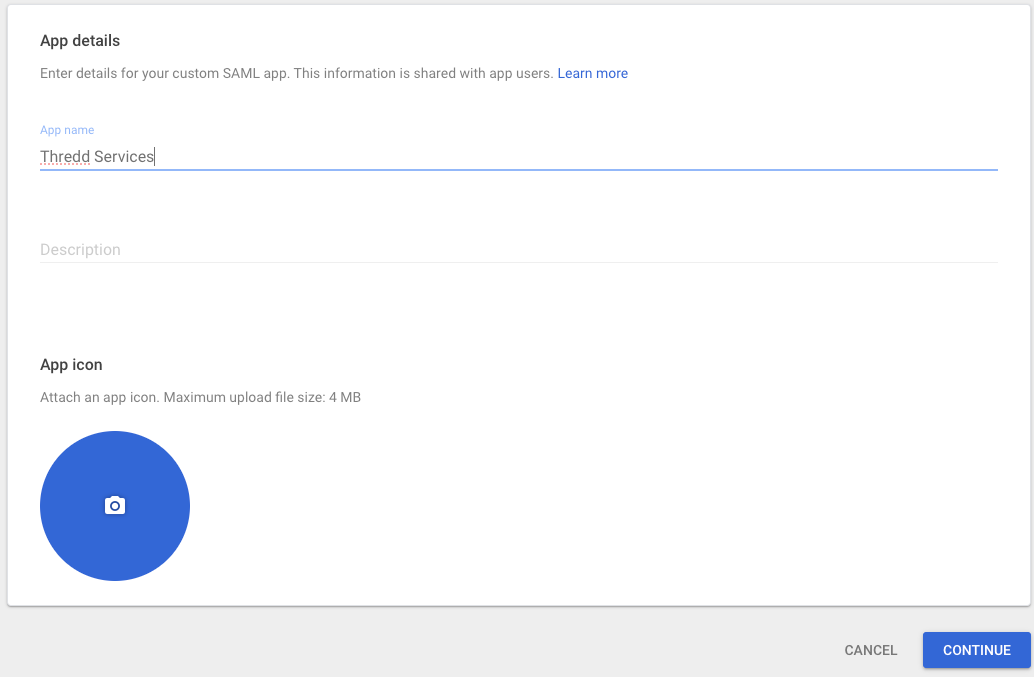
- Enter a name for the app that accesses Thredd services in App name and select Continue. The next page appears.
- To download the metadata, select Download Metadata and save the file. Then share the file with Thredd. Proceed to step 7.
-
To include entity ID and URL details:
- Add the URL in SSO URL.
- Add in the Entity ID in Entity ID. A certificate and a SHA-256 fingerprint appear. These are generated automatically on the console.
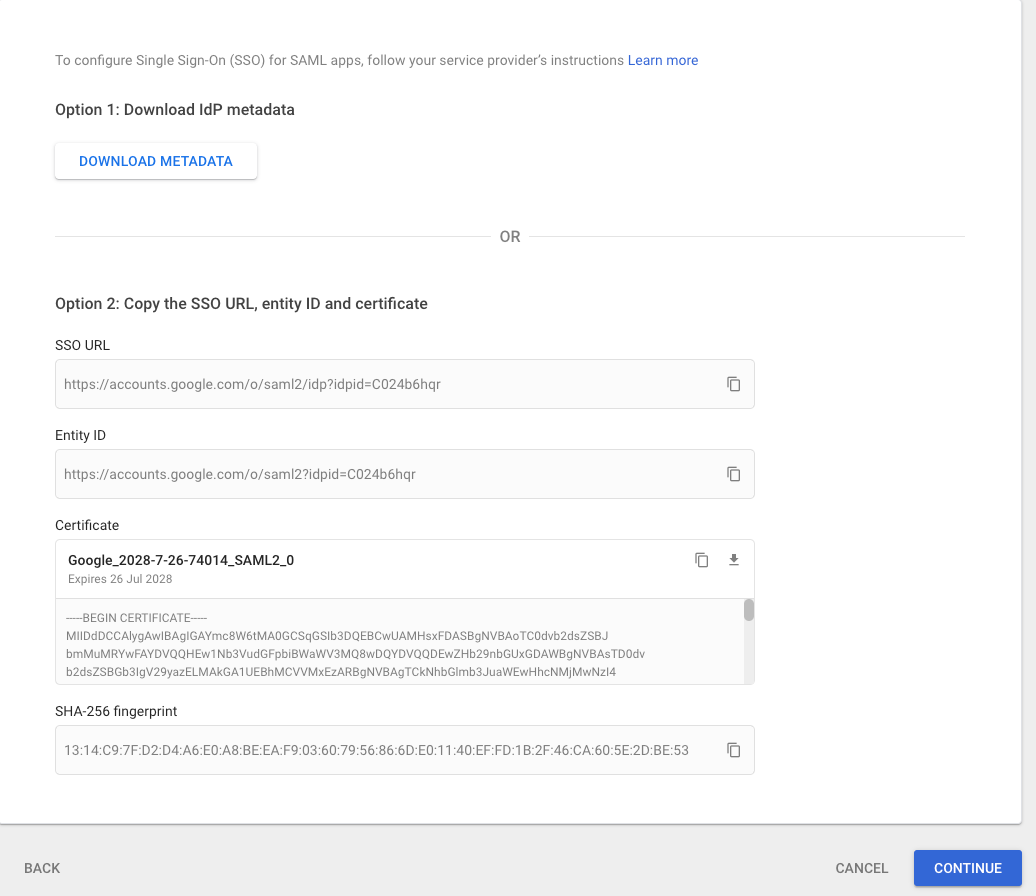
- Select Continue.
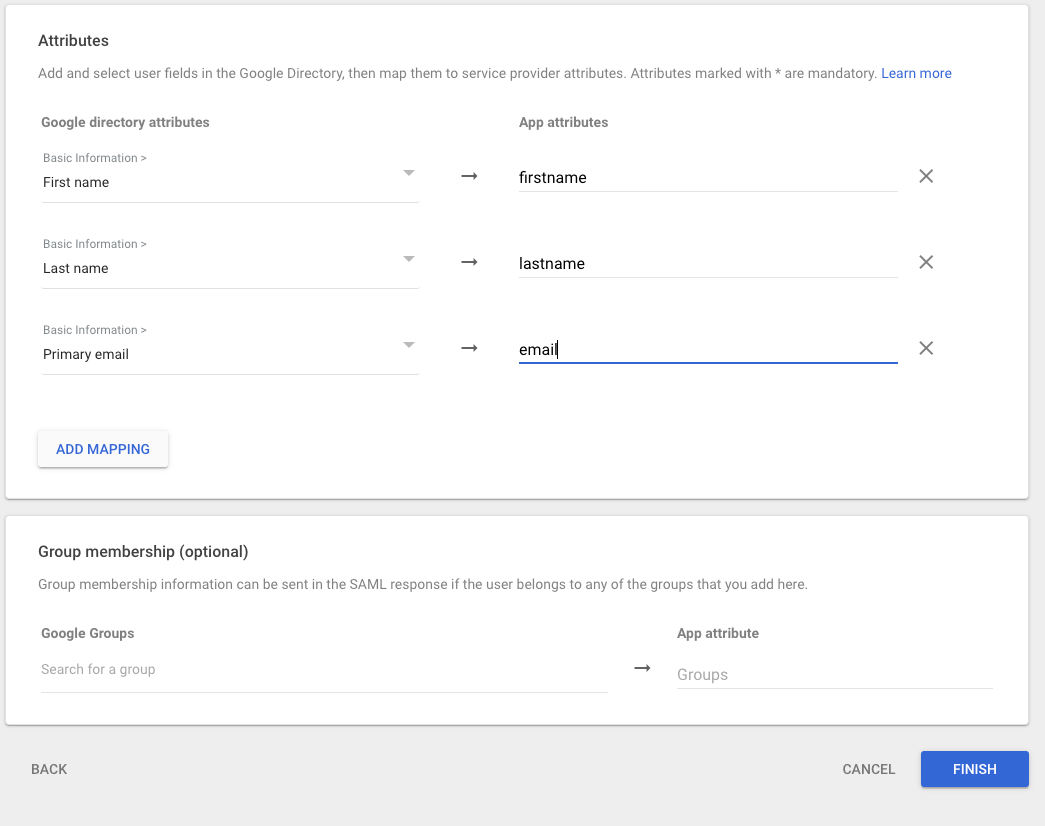
- Configure attribute mapping.
- Select the Add Mapping button.
- Select a group in Google directory attributes and choose a group in App attributes.
- To add another entry, select the Add Mapping button again and repeat the step for choosing both attributes.
The following shows an example.
- Select Finish.
- Once completed, select access permission options (see the following procedure).
Setting Access Permission Options
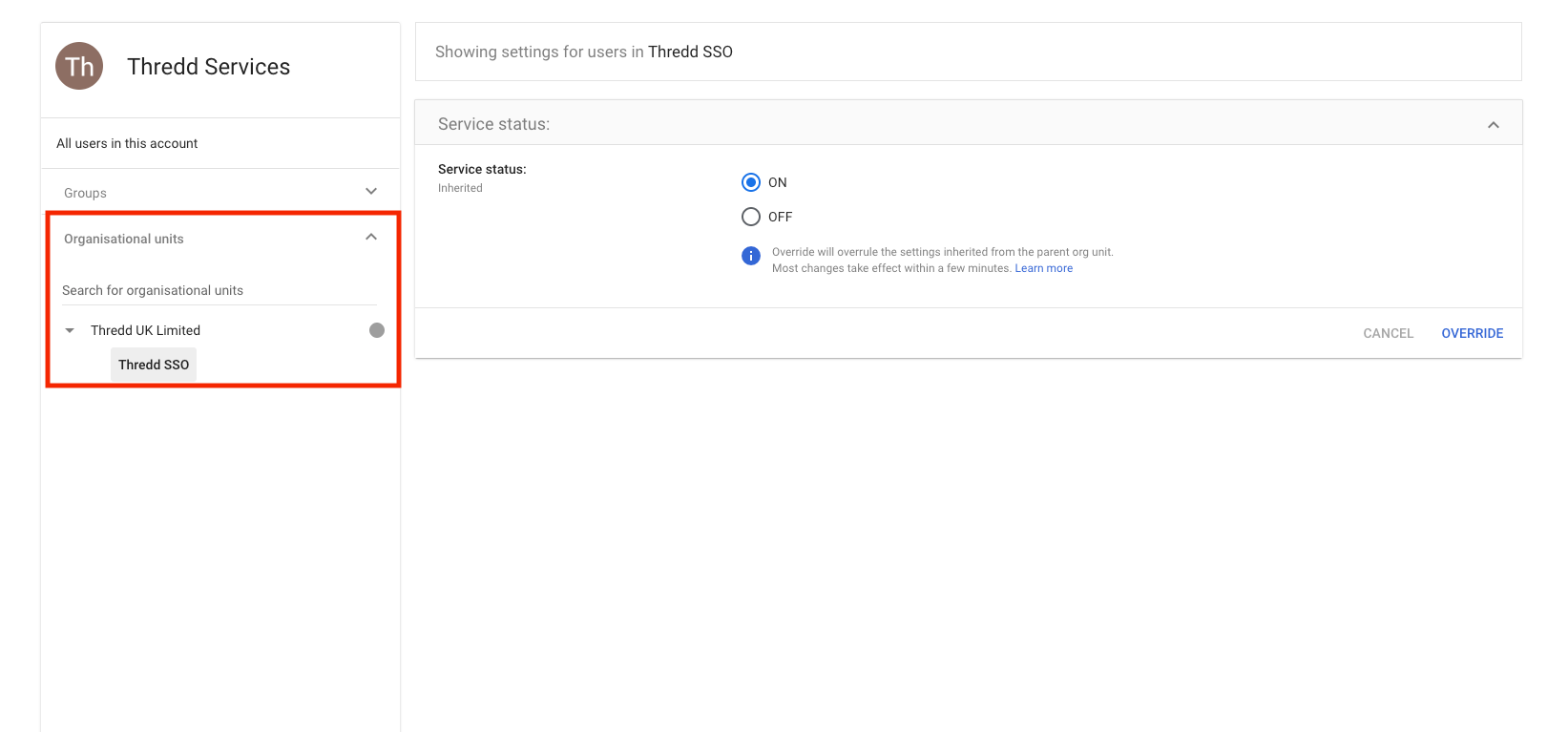
You can set access permission options for the app based on anyone who holds a Google account, membership of specific Google groups, and organisational units. An organisational unit is a named organisation within Google.
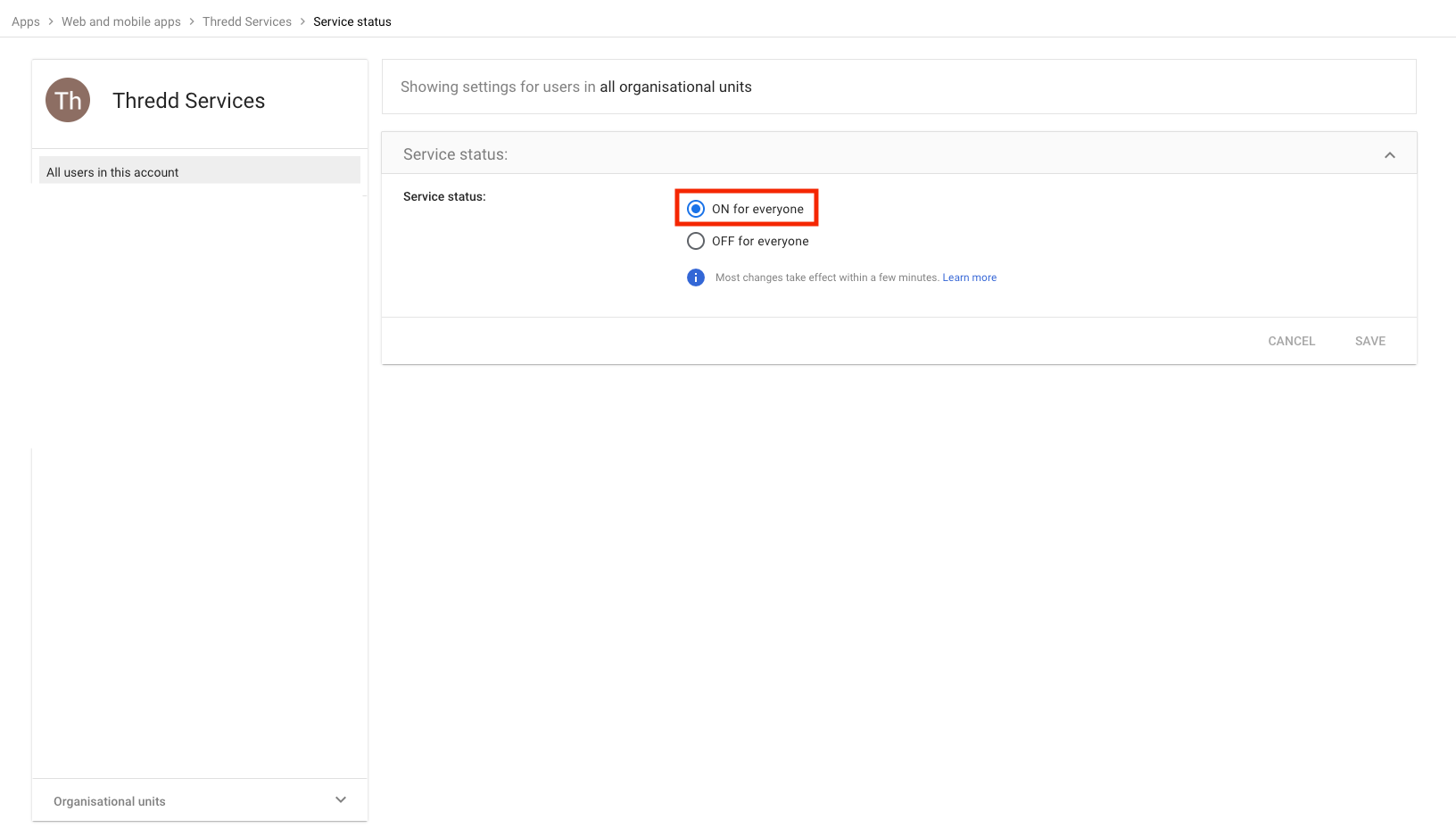
- To provide access to anyone who holds a corporate Google account, select All users in this account on the left hand menu. Then choose ON for everyone in the main screen.
- To provide access to members of a selected group:
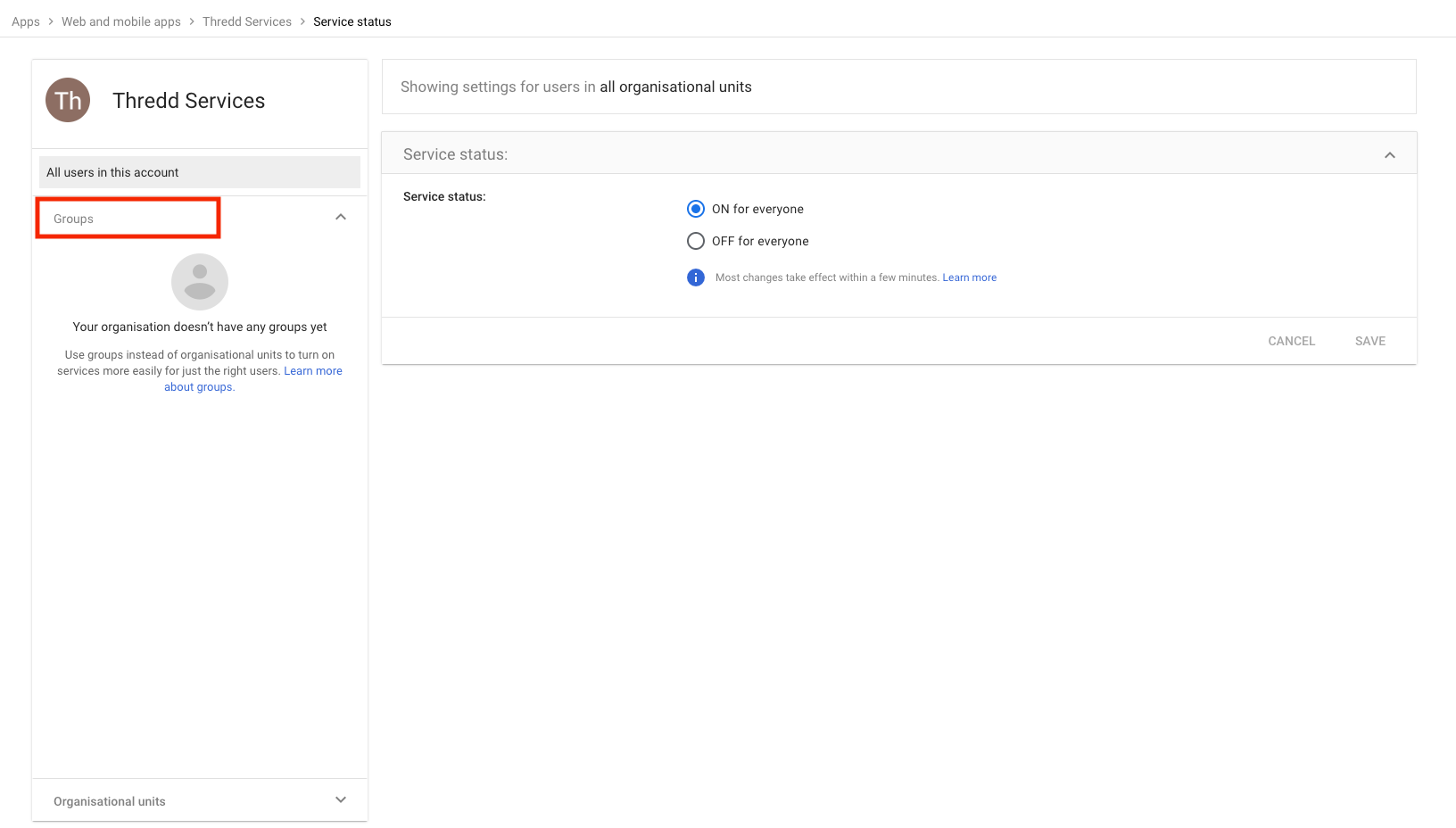
- Select Groups on the left hand menu.
- Select a group.
- Select ON for everyone in the main screen.
- To provide access to members of specific Organisational units:
- Select Organisational units on the left hand menu.
- Select an organisational unit.
- Select ON for everyone in the main screen.