Configuring SSO with Okta (OIDC)
This is a sample SSO integration. For more information on implementing SSO with Thredd, please see the SSO section of this guide.
If your organisation uses Okta, you can configure Okta as an IdP provider to provide SSO access to various Thredd services. For example, you can use SSO to access Thredd services such as Thredd Portal. This guidance describes the steps for using the OpenID Connect (OIDC) protocol for setting up SSO.
Setting up SSO is not mandatory, but Thredd recommends it.
Overview
The steps involve:
- Creating an app and app integration.
- Setting URL and refresh token settings.
- Specifying your access control requirement.
- Sharing authentication details with Thredd, via the Client ID/Client Secret method
Thredd will provide you with a Sign-in Redirect URI for creating a web application integration.
Configuring SSO
- Log in to the Okta Administration console.
- Select Applications from the left-hand menu.
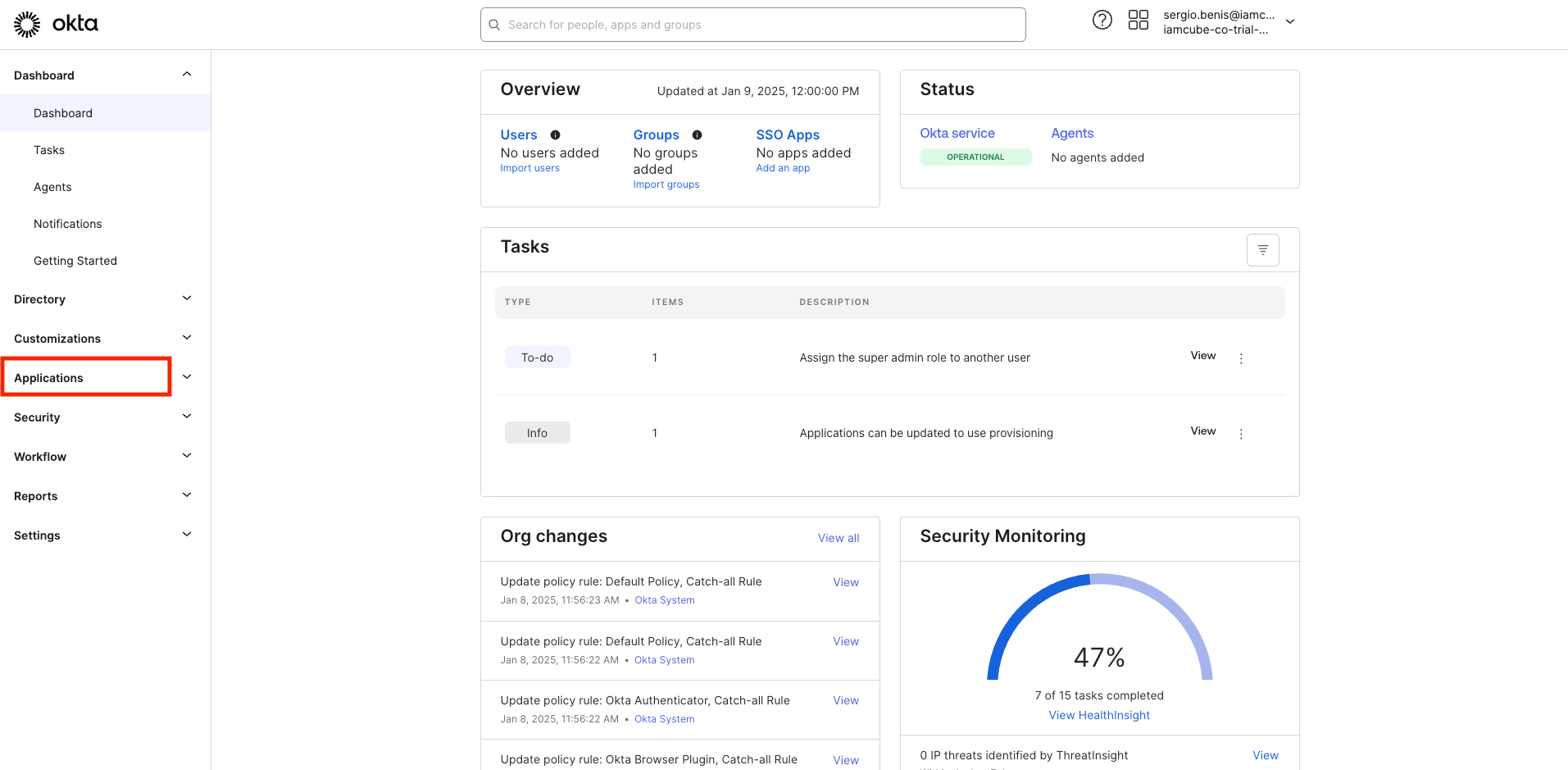
- Select Create Application.
- In Create a new application integration, select OIDC - OpenID Connect and Web Application.
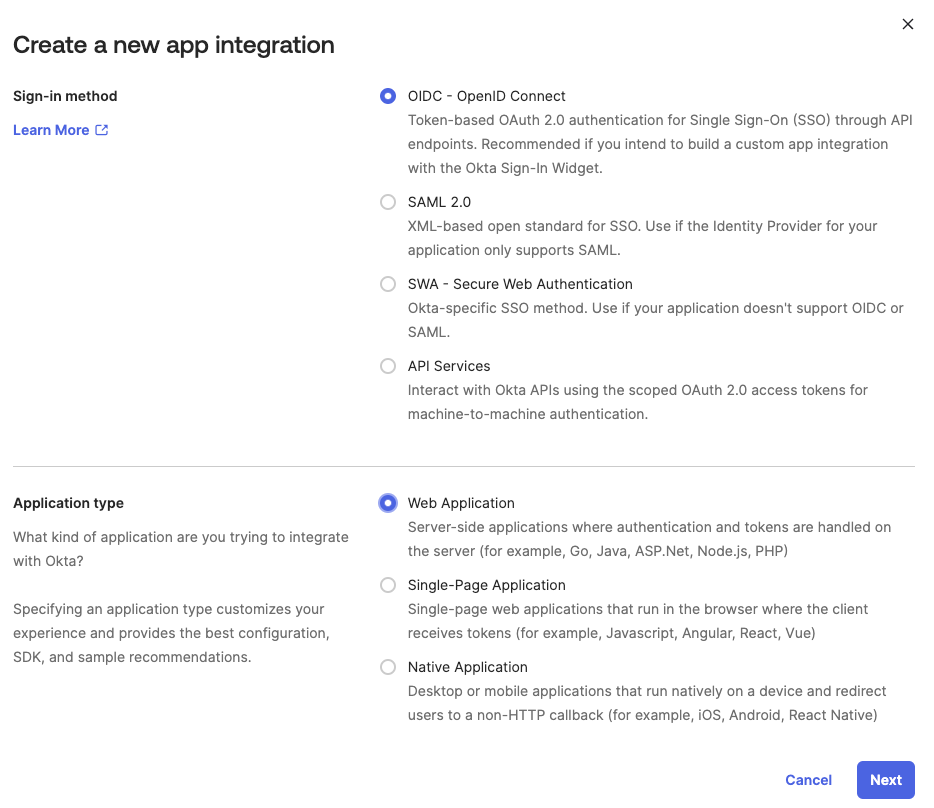
- Select Next.
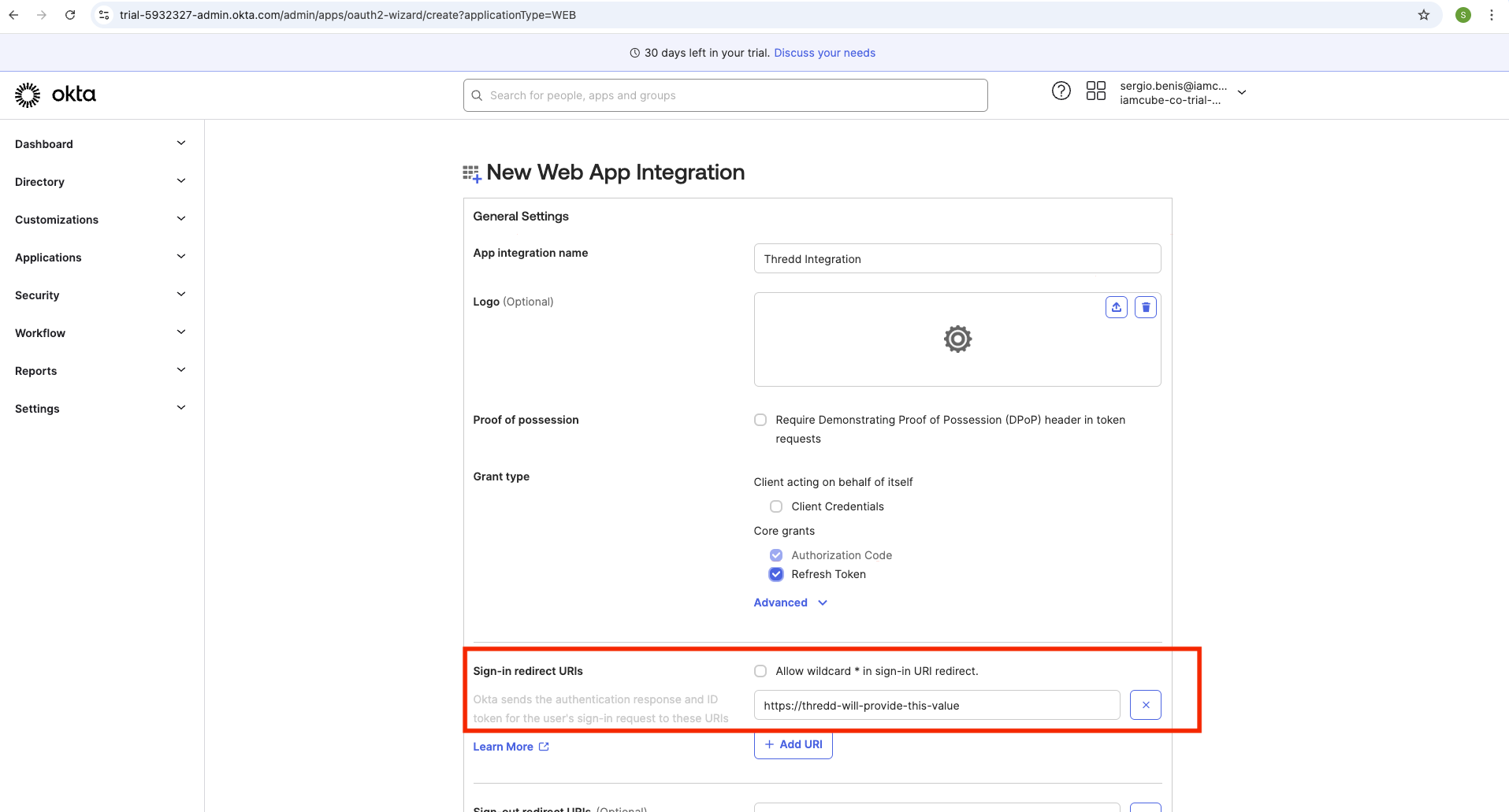
- Enter a name for your application integration in Application integration name.
- Select the Refresh Token check box.
- Enter the URL value of the sign-in redirect URIs in the Sign-in redirect URIs section.
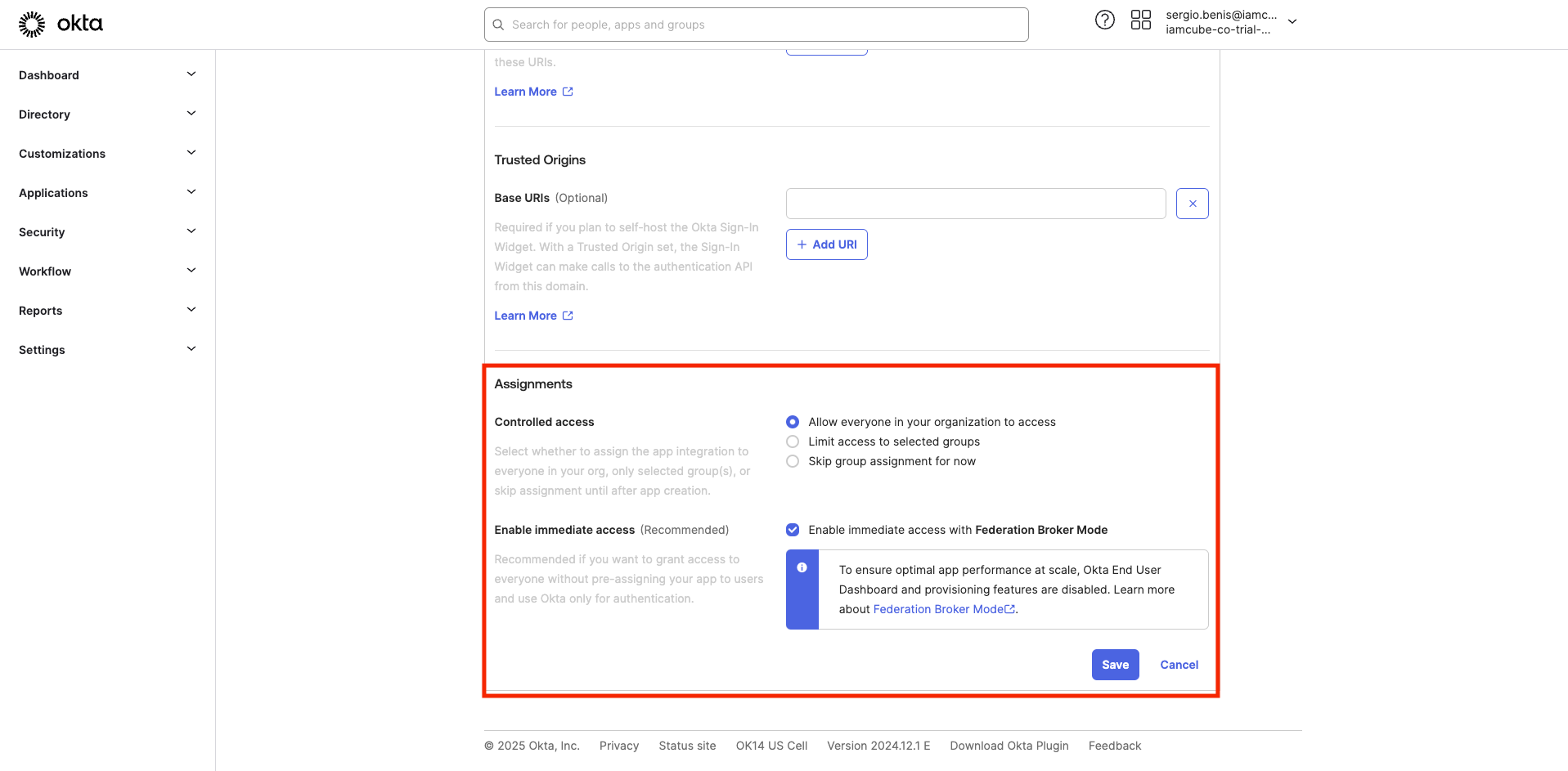
- Select how you want to control access to Thredd applications from your organisation. The following example shows that access is available to all users in your organisation, and where there is immediate access.
- Share your Client ID/Client secret details with Thredd using your preferred secure method.