Setting up EHI for mTLS connections
The External Host Interface (EHI) offers a way to exchange transactional data between the Thredd processing system and the Program Manager's externally-hosted systems.
All transaction data processed by Thredd is transferred to the external host system via EHI in real time.
An EHI with mTLS (EHIm) setup comprises an integration with an external payments network that itself is authenticated using Mutual TLS (mTLS).
EHI provides two main functions:
-
a real-time transaction notification data feed
-
payment authorisation control
mTLS relies on a system of digitally-signed certificates issued by a trusted third party called a Certificate Authority (CA). The CA proves the authenticity of the public key and the identity of the Server presenting the key.
Here, you can follow the steps to set up the External Host Interface (EHI) to communicate with Thredd using mTLS.
If you are currently presenting a certificate that has been issued by Raidiam Connect, you must replace it with a certificate that Thredd has issued and migrate your EHIm setup to Thredd. See the EHIm Migration Guide.
Overview of mTLS in EHI
In the EHIm (EHI + mTLS) communication flow, your application is the Server and Thredd is the Client. Both parties must prove their identities to each other for authentication by presenting their respective certificates to each other, and verifying this during the mTLS handshake.
The high-level communication flow is as follows:
- The Client (Thredd) connects to the Server (you).
- The Server (you) presents your Server certificate to the Client (Thredd. The Server certificate is a TLS certificate (the more modern version of an SSL certificate).
- The Client (Thredd) verifies your certificate.
- The Client (Thredd) presents its certificate.
- The Server (you) verifies the Client's (Thredd's) certificate by matching it against the information held in Thredd's Certificate Authority's Trust Chain.
Once both certificates are verified, the Server grants access. The Client and Server then exchange information over the secure connection.
In order to enable thisyou need to install the Thredd EHIm Trust Chain on your EHI Server. The EHI Server must validate the Client Certificates that Thredd sends to you. This ensures that a Chain of Trust is established.
A Trust Chain is a collection of trusted root certificates that are installed on the Server, which includes the root anchor (top level) and intermediate Certificate Authority (CA) certificates. An end entity uses these to establish a Chain of Trust, by checking the certificate chain, and validates the Client Certificate. The Server uses the Certificate Chain to prove the legitimacy of a Client Certificate by tracing it back to a single Root CA.
What is mTLS?
Mutual Transport Layer Security (Mutual TLS or mTLS) is an enhanced security protocol that ensures that both the Client and the Server verify each other's identity before establishing a secure communication channel. This is a digital handshake where both parties must provide their official identity. To learn more about mTLS, see Mutual TLS explained.
Configuring your Server to use EHI over mTLS
You need to obtain, install and store the certificates on your EHI Server, which form the trust store that the Chain of Trust refers to when validating the path and certificates.
To ensure this, you must:
-
Obtain a Server Certificate from a Certificate of Authority vendor, such as Verizon or Digicert or Amazon Web Services, and install it on your EHI listening point.
-
Download and install Thredd's EHI Trust Chain on your Server, and store the CA's Root and Issuing Certificates on your mTLS termination point. You must configure your systems to ensure that your Server presents this certificate to the Client (Thredd) during the mTLS handshake.
-
Ensure that your mTLS termination point has access to Thredd's Online Certificate Status Protocol (OCSP) responder.
-
Test the EHI endpoint.
-
Provide the EHI endpoint to and inform Thredd that you are ready to use the EHI application.
Prerequisites
-
You must have the Organisation Admin role for your organisation in Thredd Portal.
-
You must have access to Thredd Portal.
-
You must have obtained and installed a Server Certificate from a Certificate of Authority vendor, such as Verizon or Digicert or Amazon Web Services.
Step 1: Download and install Thredd's EHI Trust Chain
You must install the EHI Trust Chain on your Server and configure your systems to ensure that your Server presents its Server Certificate to the Client (Thredd) and validates against the EHI Trust Chain during the mTLS handshake.
To download the Trust Chain:
-
Log in to Thredd Portal.
-
Navigate to and select System Admin, select Organisation, and then select EHI Configuration.
-
The EHI Configuration page opens. Locate the certificate/trust chain file under Certificate Chain, and click Download. If a certificate chain is not available to download, contact Thredd for support.
Next, configure your mTLS termination point (your load balancer, proxy, or server) settings to validate against the Thredd EHI Trust Chain. Point it to or copy the contents of the Thredd EHI Trust Chain file.
Before you proceed, you must ensure that:
-
Your mTLS termination point is validating against the Thredd EHI Trust Chain file.
-
You store the CA's Root and Issuing Certificates on your mTLS termination point.
Refer to your server's technical documentation for information about how to complete this task.
Step 2: Ensure that your mTLS termination point has access to Thredd's Online Certificate Status Protocol (OCSP) Responder
Thredd recommends that you configure your mTLS termination point (load balancer, proxy, or server) to carry out certificate status checks. For example, to check if the certificate has been revoked.
This is optional. However, if you want to ensure that it can do this, your mTLS termination point must have access Thredd's Online Certificate Status Protocol (OCSP) Responder. The OCSP Responder provides both clients and Thredd with the ability to verify the validity of certificates issued within Thredd's private PKI hierarchy, and in real time.
Check the settings for your mTLS termination point:
-
Make sure that your mTLS termination point can access Thredd's OCSP Responder at:
https://ocsp.threddid.com -
Verify and change the settings if necessary. For example, by adding the OCSP Responder to the allowlist.
-
Refer to your server's documentation for information about how to check and change your mTLS termination point settings.
Step 3: Test the EHI endpoint
Once you are ready, test the EHI endpoint with the online SSLLabs tool and OpenSSL. This is to ensure that you can successfully communicate with EHI over mTLS.
Once you have completed testing, provide the EHI endpoint to Thredd, as per step 4.
You must not provide the EHI endpoint if you have not completed testing.
Test using SSLLabs
- Go to the URL of the tool: https://www.ssllabs.com/ssltest/
- Enter the URL to be tested in the SSL Labs test screen test page. For example,
api.thredd.com. The results appear similar to the following:
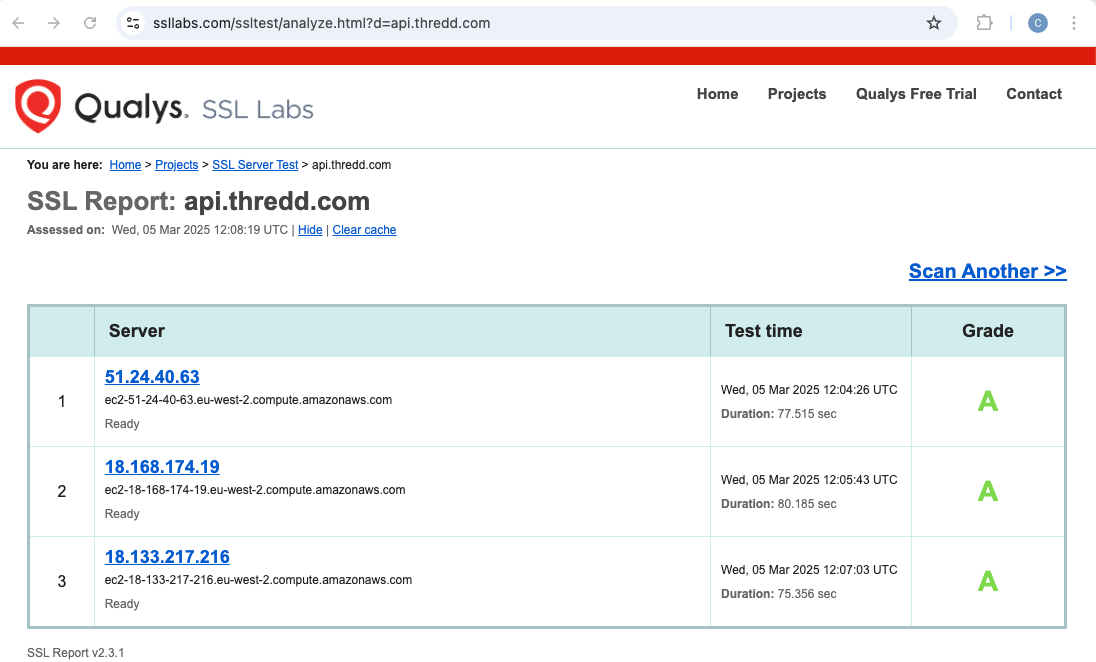
Figure: Passing Tests on SSL Labs
An "A" Grade results in the test passing. However, "B" will not result in a pass, and can indicate that the problem is due to a missing an Immediate or Root certificate on your Server.
Test using OpenSSL
You should run the following command that triggers the TLS handshake for the communication between Server (you) and the Client (Thredd). You receive responses for the Server and Client certificates.
openssl s_client -connect ehi.yourdomain.com:443Server Certificate result
The results for the Server certificate appear as follows:
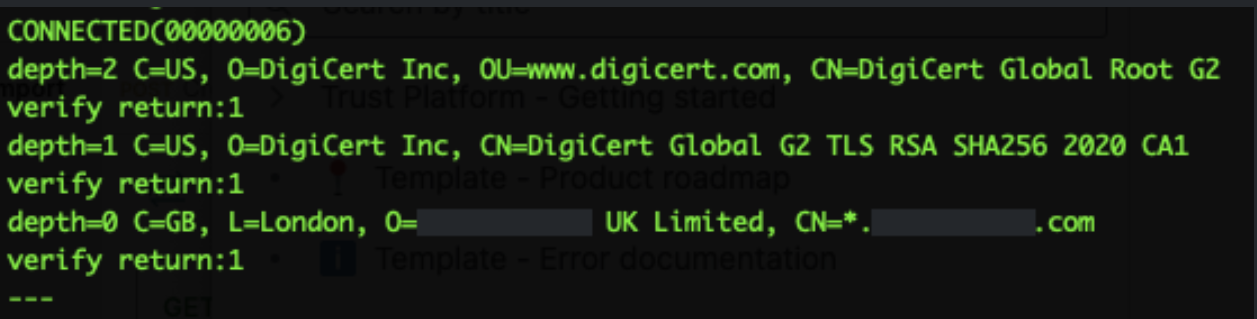
Figure: Server Certificate Result Including Depth Settings
If Depth 0,1,2 all show verify return:1 this indicates that the EHI servers trust the Server Certificate. There could be an issue with Server certificate result, if the results are different; for example, if there is no verify return:1 for the depth settings. The Depth settings mean the following:
|
Depth Setting |
Description |
|---|---|
|
Depth 0 = Root |
The Root certificate has been sent. |
|
Depth 1 = Intermediate: |
The Leaf certificate has been sent. |
|
Depth 2 = Root: |
The Root certificate has been sent. |
You should configure your Server's TLS setup so that it sends the Server Certificate and the Intermediate Certificate. If the Server sends only the Server certificate then the Chain of Trust is not complete; the mTLS connection is not set up between the Server and the Client.
Client Certificate result
For validating the Client Certificate, certificates that Thredd users appear under Acceptable client certificate CA names. There may be an issue if the Acceptable client certificate CA names section is empty, where Thredd's CAs are not listed.
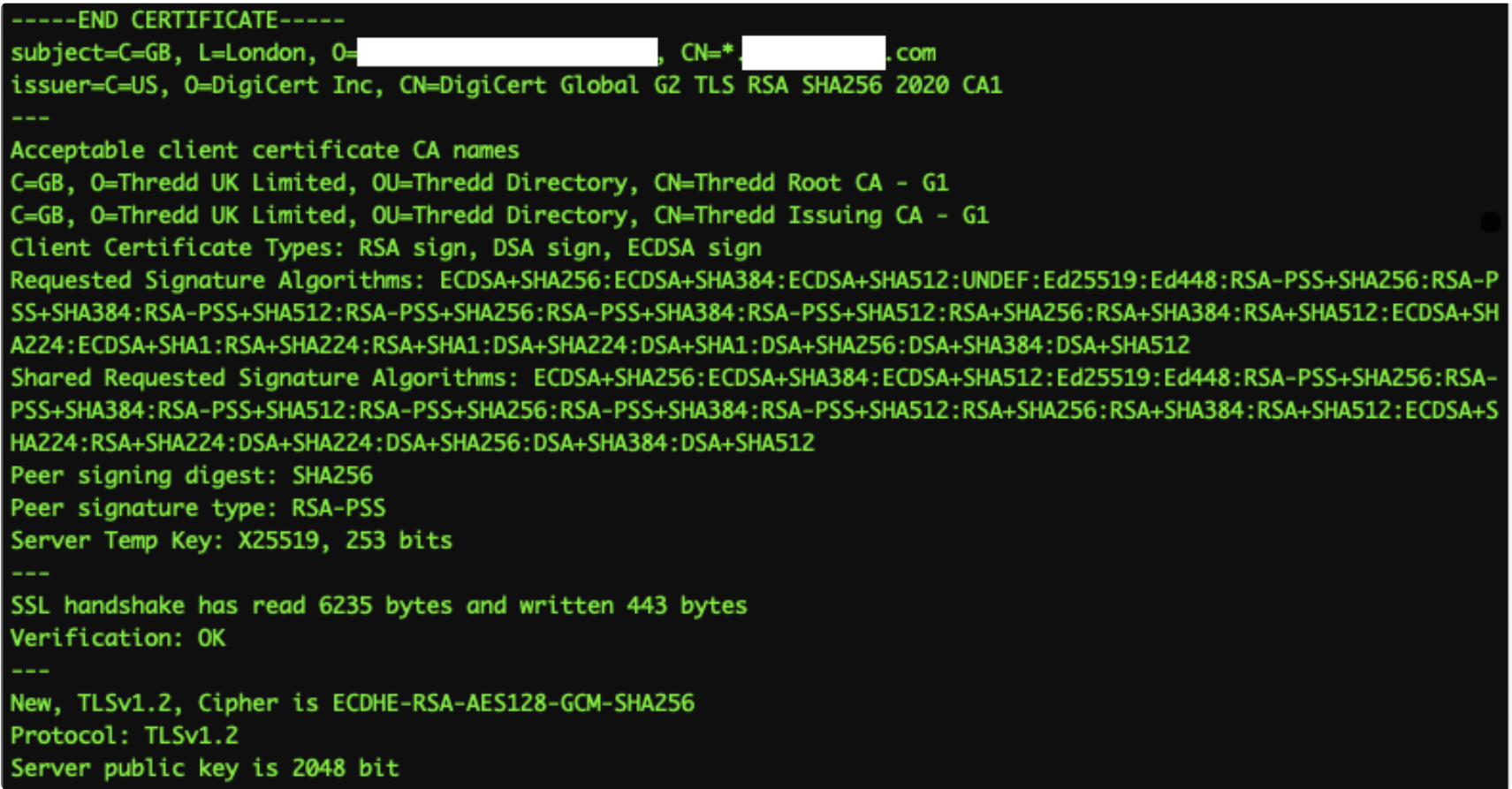
Figure: Client Certificate Response
Listing the CA authority is optional. If this is empty, it might not mean that the mutual part of the certificate validation has failed.
You might need to check the EHI listener endpoint configuration if the following has occurred:
- If the SSL Labs test does not give an "A" Grade response.
- The Server Certificate does not show
verify return:1at all depths. The Acceptable client certificate CA names are not sent.
Testing requests without a certificate
For additional testing, you can test a request to the EHI endpoint that does not contain a certificate. Using cURL, you see a 400 or 403 response as in the following example.
# Request
curl -v https://api.yourdomain.com/ehim/endpoint/api
# Partial Response
<html>
<head><title>400 No required SSL certificate was sent</title></head>
<body>
<center><h1>400 Bad Request</h1></center>
<center>No required SSL certificate was sent</center>
Testing requests with a certificate
You can also test a request to the EHI endpoint that contains a certificate. Using cURL, you see a 200 response as in the following example.
# Request
curl --cert ./exampleClientCert.pem --key ./exampleClientCert.key \
     -X POST \
     -H "Content-Type: application/json" \
     -d '{"foo": "bar"}' \
     -v https://api.yourdomain.com/ehim/endpoint/api
# Partial Response
200 OK
Step 4: Inform Thredd that you are ready to use the EHI application
Once you have completed testing, provide the EHI endpoint to Thredd.
You must not provide the EHI endpoint if you have not completed testing.
Thredd will confirm to you when you are ready to continue to setting up your integration with EHI. See one of the following guides to learn more about EHI:
Message Architecture between Thredd and the Customer EHI
The following shows the message architecture between Thredd and your EHI components (the EHI Customer). The EHI listener endpoint and the mTLS termination point are part of your EHI components.
-
Thredd uses the Certificate Authority, Thredd Certificate Authority, to create a Transport Certificate to enable communication later over mTLS.
-
Thredd's Message Processor sends and processes EHI messages that are received from the Cards Schemes (Networks) to Thredd's EHI servers.
-
Thredd sends the EHI messages via a gateway and adds the Transport Certificate.
-
EHI requests travel across the Internet with the associated Transport Certificate attached. Note that Thredd's outgoing firewall has a fixed IP address.
-
The Transport Certificate is presented to your (the Server's) incoming mTLS termination point during the connection handshake.
-
Your systems validate the Transport Certificate by checking it against the CA chain of trust (Root and Issuing Certificates).
-
When the mTLS handshake is complete, you receive EHI messages on your EHI endpoint (External Host System).
Adding Security Controls
You can choose to implement additional optional controls to enhance mTLS security. These include the:
-
IP Address Allowlist — Thredd EHI messages are sent from a firewall with a fixed IP address. Optionally, you can add this IP address to your allowlist.
-
Certificate Pinning — the mutual communication, between your Server and Thredd (the Client), is secured by Thredd's Transport Certificate. Your Server only trusts the Transport Certificate if it the Thredd CA has issued it. However, you can choose to also implement Certificate Pinning. Certificate Pinning blocks attempted requests made with the incorrect certificates. For more information, see Certificate and Public Key Pinning | OWASP Foundation.